

In Outlook
What do staff see in Outlook?
A separate calendar next to their own, under the name they give it at setup. On every day it holds one all-day entry for each of that day's events, one to three in all.
The entries are marked as free, so they sit at the top of the day without taking up time or colliding with meetings. They are not meeting invitations: nobody receives an email, and there is nothing to accept or decline.
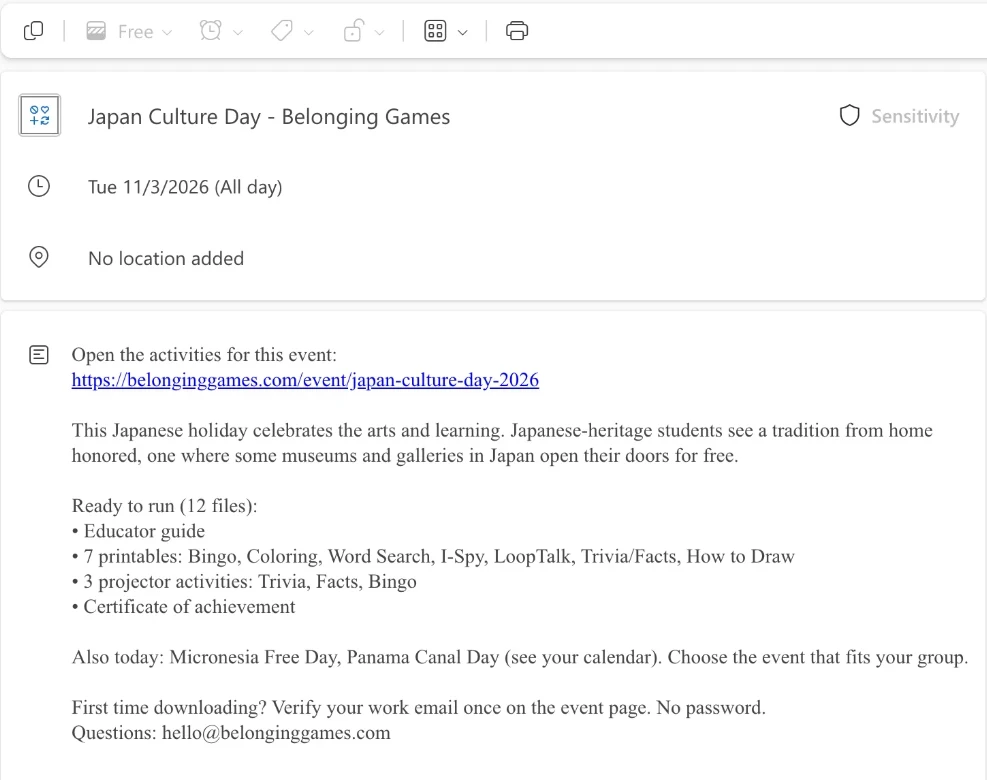
Opening an entry shows the same parts each time. Here is the one for Japan Culture Day on November 3, 2026:
| In the entry | Example |
|---|---|
| Title | Japan Culture Day - Belonging Games |
| A link to the activities | belonginggames.com/event/japan-culture-day-2026 |
| A short description of the day | This Japanese holiday celebrates the arts and learning. Japanese-heritage students see a tradition from home honored, one where some museums and galleries in Japan open their doors for free. |
| What is ready to run | 12 files: an educator guide, 7 printables (Bingo, Coloring, Word Search, I-Spy, LoopTalk, Trivia/Facts, How to Draw), 3 projector activities (Trivia, Facts, Bingo) and a certificate of achievement |
| The day's other events | Micronesia Free Day and Panama Canal Day, so staff can choose the one that fits their group |
| A note for first-time users | Verify your work email once on the event page. No password |
The calendar reaches back 30 days and forward about six months. An entry lists the files that are ready for its event. Each month's activity files are normally added at the start of that month; before then, an entry gives the day's description and a note saying when its activities will be ready.
For staff
What do staff open from the entry?
The link in the entry opens that event's page on belonginggames.com, in any browser, on a computer or a phone.
- The page lists the day's 12 files. Staff choose what suits the group: the educator guide, printable activities, projector activities or the certificate.
- The first download asks for a work email. The educator confirms it with a link or a 6-digit code sent to that address. No password is created, and the browser can be remembered for 30 days.
- Then they print or project, and lead the activity themselves.
Event pages are public. The files open only for educators your program has authorized, except on free sample days, which anyone can open.
See it for yourself: Explore Japan Culture Day, a complete enrichment pack with all 12 files available without an account. Or browse the live calendar to see what Belonging Games offers each day.
Setup
How is the Outlook calendar set up?
Your coordinator receives a subscription link for your site at the start of a pilot or license. Each person who wants the events in Outlook does this once, in Outlook on the web:
- On a computer, open Outlook on the web and go to Calendar.
- Select Add calendar, then Subscribe from web.
- Paste your site's Belonging Games link and give the calendar a name, such as "Belonging Games".
- Select Import and Save. In some Outlook versions, this button is labelled Import. This creates a subscription that updates automatically.
These steps are for Outlook on the web, the version that work and school accounts open in a browser. Other versions of Outlook arrange their menus differently, so if you cannot find "Subscribe from web", use Outlook on the web for this one-time step.
Subscribing is different from importing a downloaded calendar file. An imported file is a snapshot that never updates; the subscribed link keeps filling in new days.
Outlook refreshes subscribed calendars automatically, but changes can take more than 24 hours to appear. For the latest information and activity files, open the event page on belonginggames.com.
Microsoft's own instructions: Import or subscribe to a calendar in Outlook.com or Outlook on the web (checked November 18, 2026).
Access
What access does Belonging Games have to Microsoft 365?
None. Outlook requests our event feed; nothing connects the other way, and we never ask for Microsoft account credentials.
- No add-in and no sign-in. There is nothing to install in Outlook and no Microsoft account is linked to Belonging Games.
- No view into your calendars or mail. We do not receive access to your staff's appointments, meetings, contacts or messages.
- No changes to your own events. Belonging Games only fills its own calendar, and anyone can remove that calendar whenever they like.
- What we record. For each site, the first and most recent time its link was requested and which calendar app asked, including the technical name the app sends. This tells us the site's calendar is working. The request also passes through our short-term technical logs, which can include an IP address; our Privacy Policy covers these. It contains no name, no email address and nothing from anyone's calendar.
- What the calendar holds. Event titles, public descriptions, links to public event pages and our support email address. It carries no files and no staff details.
- No student information. Belonging Games does not collect any.
If your organization blocks calendars from outside links, your IT team can advise. It still needs no installation.
Teams
Can the whole team use one link?
Yes. The link belongs to your site, not to one person, so the coordinator can pass it to every educator there and each adds it to their own Outlook. A program with several sites gets one link per site, and staff subscribe to the link for the site where they work.
Treat the link as internal to your team. Someone who has it can view the calendar's event information, which is the same public description shown on our website, but cannot download activity files without an authorized educator email.
When a pilot or license ends, we stop sending events to your site's link. Entries Outlook has already loaded can remain until its next refresh, or until you remove the calendar.
Related: Works with Google Calendar · Enrichment for substitute and new staff · What is plug-and-play enrichment? · Pricing and the 30-day pilot · Book a demo
FAQ
Questions
Is there an enrichment program that works with Outlook Calendar for after-school staff?
Yes. Belonging Games is a daily, plug-and-play enrichment service for elementary after-school programs. Its 1–3 curated events for each day appear in your staff's Outlook calendar, each linking to an educator guide, 7 printable activities, 3 projector activities and a certificate.
Is Belonging Games an Outlook add-in, and does IT need to approve it?
It is not an add-in or an app. It is a calendar your staff subscribe to by link, so there is nothing to install and no permissions to grant. IT only needs to be involved if your organization blocks outside calendar links.
Will staff get an email or a meeting invite for every event?
No. The events are entries in a subscribed calendar, not invitations. Nothing lands in anyone's inbox, and the entries are marked as free.
How quickly do new events show up in Outlook?
Events are scheduled months ahead, so they are normally already there. A change shows after Outlook next refreshes the calendar, which happens automatically but can take more than 24 hours, so the event page on belonginggames.com is the place to check for the latest version.
Our district uses Google for some staff and Outlook for others. Can both use it?
Yes. The same site link works in both. See Belonging Games and Google Calendar for the Google steps.
Outlook and Microsoft 365 are trademarks of the Microsoft group of companies. Belonging Games is not affiliated with or endorsed by Microsoft.